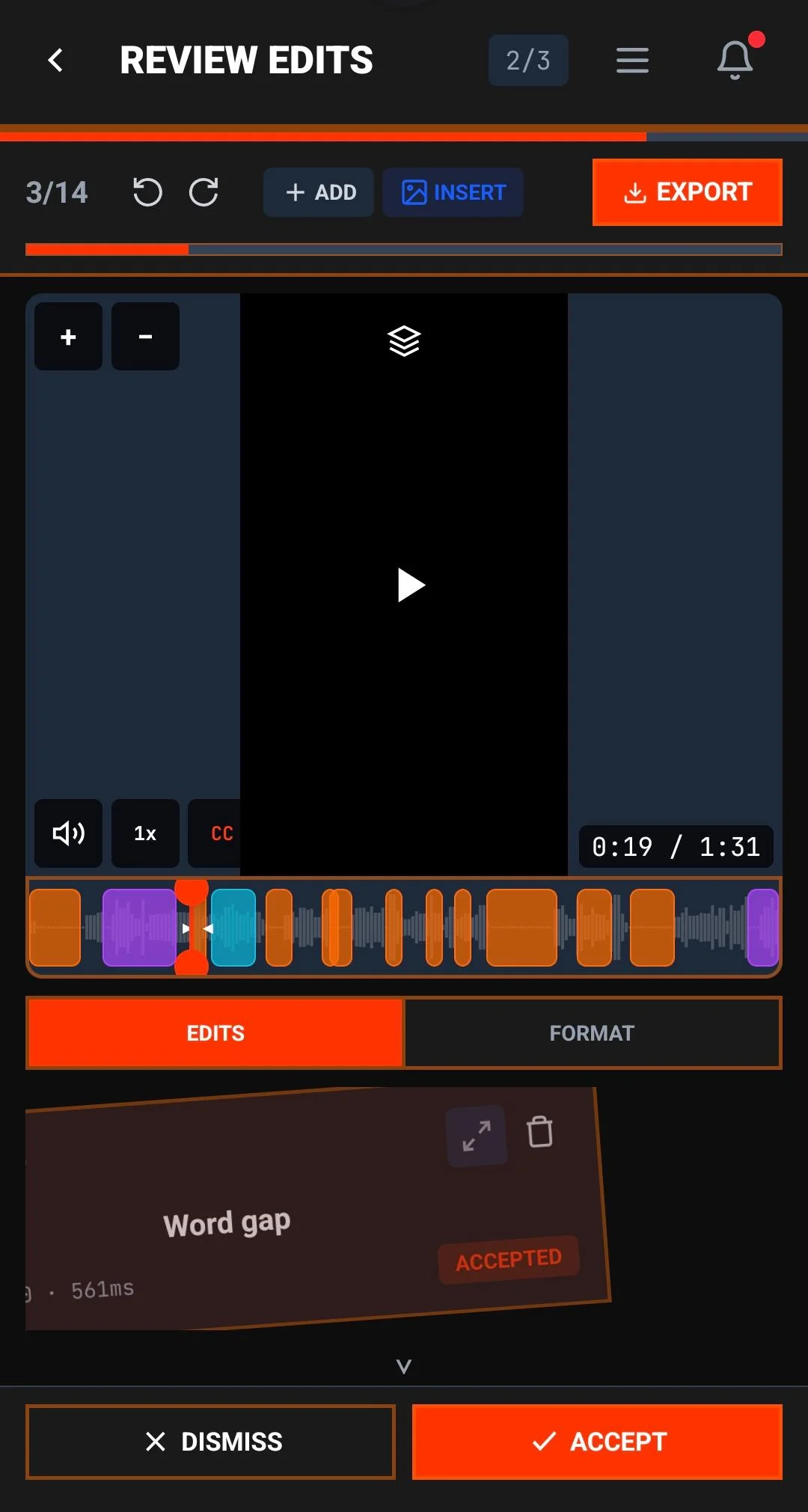
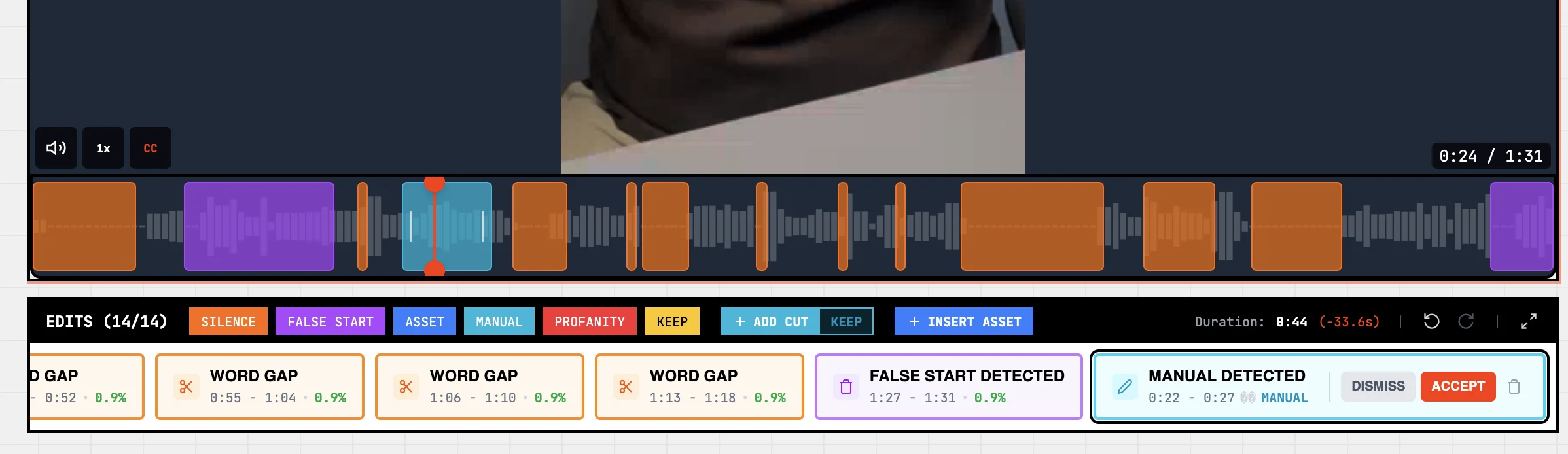
Where you land after analysis depends on your device. On desktop, the editor is two halves: video preview on top, timeline below with everything stacked on lanes.On mobile, you start in Swipe Review — one card at a time, accept or dismiss, haptic feedback on every action. Either way, the AI's decisions are reviewable cards, color-coded by what they do.
Cut versus keep
Two modes change how the cards on the timeline are interpreted. Same cards, opposite meaning — flip between them depending on what you're trying to do.
Cut vs Keep mode
Live demoToggle to see how cards are interpreted
Cut mode (default) — cards are REMOVALS. Whatever's NOT covered by a card stays. Below, the orange silence cards mark spans that get removed, leaving the rest. The exported video is slightly shorter than the source.
Reviewing edits
Click any card to inspect it. From there you can keep it (default), dismiss it (no cut applied), or drag the boundaries to fine-tune the in/out points. If a silence cut feels too tight, drag the right boundary outward by a few hundred milliseconds — the preview updates as you drag. Tap a card in the swipe stack. Accept and dismiss are big thumb-zone buttons; for fine adjustments, expand the card and drag the boundary handles. Haptic feedback fires on every action so you can pace through 50+ cards without looking up.
Captions
Captions appear on a dedicated lane below the video lane. Click any caption line to edit the text inline — useful for proper nouns, jargon, or anything the transcription got wrong. The line stays synced to its original timing; you're only changing the words.
Caption styling — font, size, position, color, background, drop shadow — lives in the export panel, not here. Why? Because the right caption style depends on the platform: bigger centered captions for TikTok, smaller lower-thirds for YouTube. Picking it at export keeps the timeline view uncluttered. See exports for the live preview.
Manual edits
The AI doesn't catch everything. Sometimes you want to remove a section it thought was fine, or trim a hesitation it scored too low.
Select a region on the timeline (drag, or use I + O for in/out points), then hit X. The cut becomes a manual card — adjustable, dismissible, exportable, just like the AI ones.
Adding B-roll or other overlays? See assets and B-roll. Ready to render? See exports and formats.