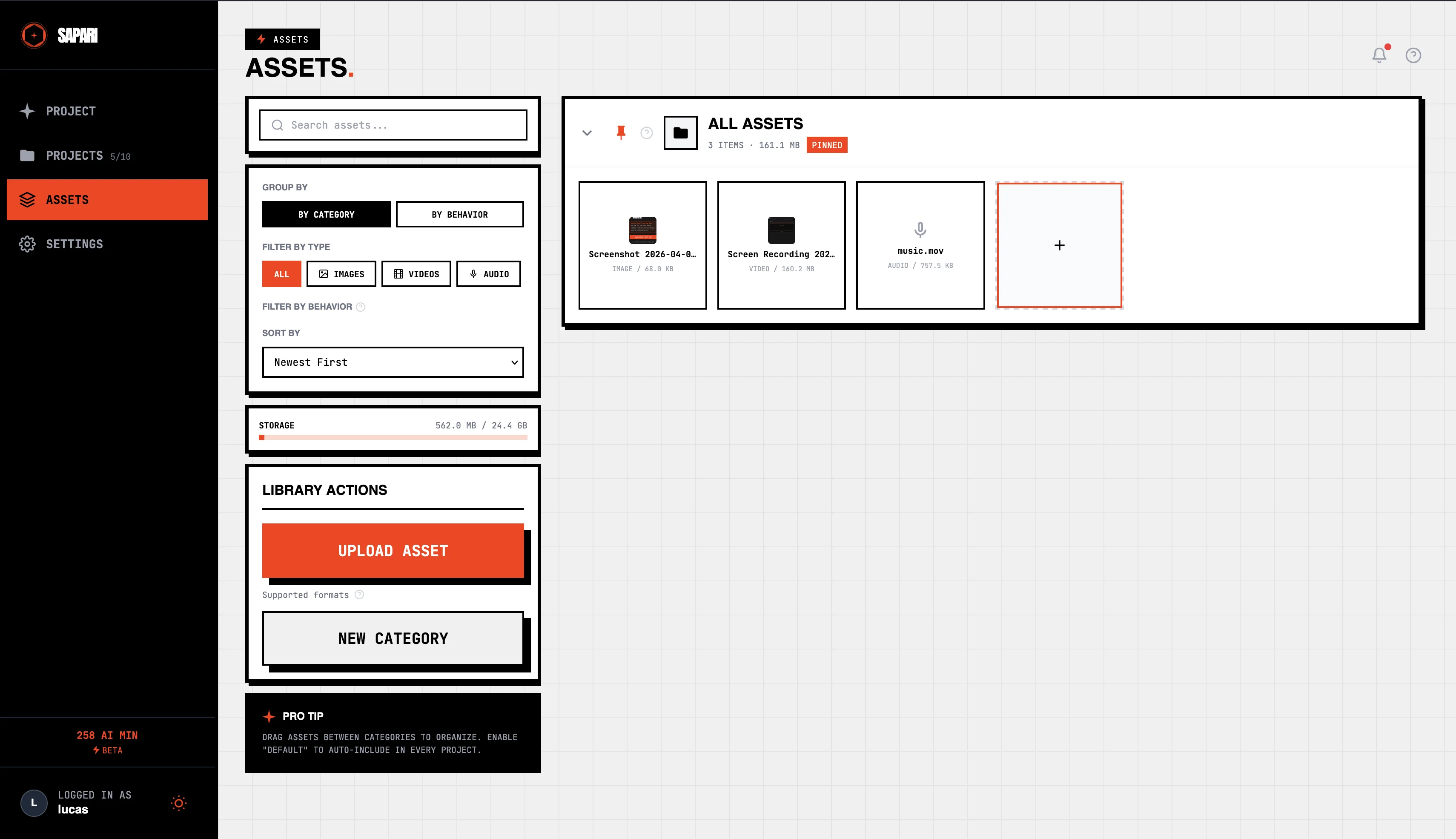
Assets live at the account level — accessible from the sidebaraccessible from the bottom-tab Assets icon. Three things go in: video clips (intros, outros, B-roll), images (logos, lower-thirds), and audio (background music, sound effects).
Once an asset is in the library, it's available to every project. Useful for branding (your standard intro animation), recurring elements (the music bed you always use), or B-roll libraries you've curated over time.
Visual modes
When you place a video or image asset, you choose how it composites with the main footage. Three modes — each treats the audio differently too. Toggle through them and watch the audio waveform underneath:
Placing assets
Drag from the asset panel onto the timeline at the moment you want it.Tap an asset in the panel, then tap the spot on the timeline. Once placed, an asset behaves like any other timeline element: drag the boundaries to change in/out, drag the asset itself to move it, click for properties (volume, opacity, transition).
AI placement
Toggle Asset injection in the configure panel before running analysis, and Sapari will suggest placements based on what's being said. The AI matches asset metadata (title, tags, content tagging from upload) against the transcribed audio — if you've named a B-roll clip "city traffic" and someone says "the commute downtown," it'll surface as a candidate.
Audio assets
Music and sound effects work the same way as video assets, just on the audio lane. Per-asset volume control, plus automatic ducking when voice is present (the music drops in volume so the speaker stays clear, lifts back when you stop talking). No keyframing required.
Want to know what gets rendered into the final file and what doesn't? See exports and formats.