Before any of this fires, you choose what mode the analysis runs in. The mode is implicit — it's derived from which features you've toggled on:
| Mode | What's on | Cost |
|---|---|---|
| AI Edit | Anything other than 'language only' | 1× credits |
| Captions Only | Just a caption language picked | 0.5× credits |
| Manual | Nothing toggled — empty timeline, free transcribe | Free |
The takeaway: there's no penalty for starting fresh and adding features later. Each analysis is independent — you can re-run with a different mix any time.
Silence removal
Pacing
Live demoDrag the slider — copy below updates with each setting
Balanced — the default. Cuts dead air without making speech feel rushed. Works for most YouTube, podcast, and tutorial content. Start here and adjust based on what you hear.
Finds the dead air between words and proposes cuts. Sapari cuts on actual speech gaps rather than just quiet sections, so room tone and background music don't get mistaken for silence.
False starts
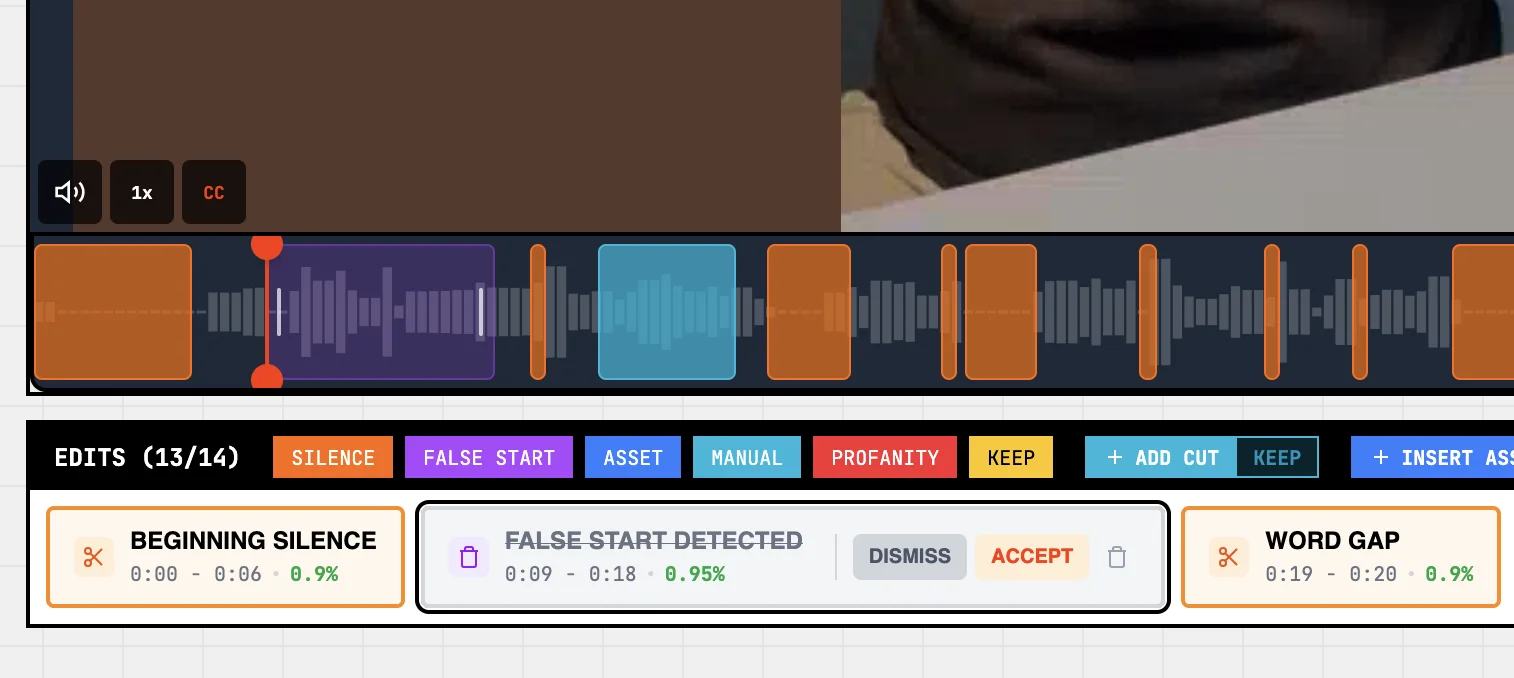
Catches the "wait, let me try that again" moments — fumbled sentences, restarts, retakes. The AI looks for repeated phrasing, abrupt restarts, and certain hesitation patterns ("the econ... the economy is..."). Same shape of control as silence — a sensitivity slider with the same Off-to-Aggressive arc.
False starts
Live demoDrag to dial sensitivity
Moderate — the default. Catches clear retakes without flagging every breath or filler word. Works for most podcast, tutorial, and YouTube speech. Tune up if you have a heavy script, down if your delivery is already polished.
Captions
Captions are transcribed automatically and adapt to the aspect ratio you pick at export — bigger and more central for vertical formats, lower-third for horizontal. You can override every default at export time: font, size, position, color, background, drop shadow.
Pick the language at configure time. Sapari supports English, Portuguese, Spanish, and French today; more land as we test and validate them — see the roadmap for what's next. Set the language to whatever you'll actually speak; wrong pick degrades accuracy. If captions are all you want, leave silence and false-starts off and only pick a language. That runs as Captions Only mode at half the credits.
Edit individual captions inline if a word came out wrong. Captions sync to the timeline, so clicking a line jumps you to that moment in the preview.
Censorship
Mute or bleep profanity. The change lands on the exact word, not somewhere near it.
Profanity filter
Live demoThree modes — pick one to see what each does
Off — profanity ships through to the final audio and captions exactly as recorded. The default. Pick this when audience is adult and platform allows it (most YouTube, podcasts, Patreon).
Audio cleanup
The Clean Sweep is one toggle that handles the audio post-production: voice levelled to broadcast-standard loudness (so your video plays at the same volume as everything else on YouTube and Spotify), background hum and keyboard clicks denoised, and quiet/loud sections balanced out.
When you mix in background music via assets, the music ducks under voice automatically. No knobs to turn.
The Clean Sweep
Live demoToggle on to see what shipping audio gets
On — every export goes through the audio pass: voice levelled to a broadcast-standard loudness (matches what YouTube and Spotify play at), background hum and keyboard clicks denoised, quiet and loud sections balanced out. No knobs to turn.
Director notes
Natural-language instructions before analysis runs. The AI uses these alongside the standard silence and false-start passes to shape the edit. Best for content-aware decisions that pure timing detection can't handle.
Director notes
Live demoTry writing or pick an example
Empty — the AI runs the standard analysis (silence, false starts, captions, etc.) without any creative direction. Try one of the examples or write your own.
Once analysis finishes, head to the editor to review what the AI proposed. Or jump to assets and B-roll if you want to know how the AI places overlays.